Preface
Course selection has just ended, and classes are about to begin, but managing the schedule remains a pain point. Since I just switched phones and am not yet familiar with schedule management, I decided to dig deeper and have summarized several solutions here.
First, based on export settings, methods are divided into exporting from the course website and other methods. For imports, this guide primarily explains the iOS approach; theoretically, Android should be even simpler. Finally, I’ll mention some all-in-one solutions, i.e., schedule apps.
The content may be incomplete; feel free to contribute~
ICS File Format
An ICS file is a plain text file containing some core object, such as DTSTAMP, DTSTART, DTEND, etc., and other 1.
Exporting Course Schedules
Exporting from the Course Website
First, enter the SEP - Course Selection System.
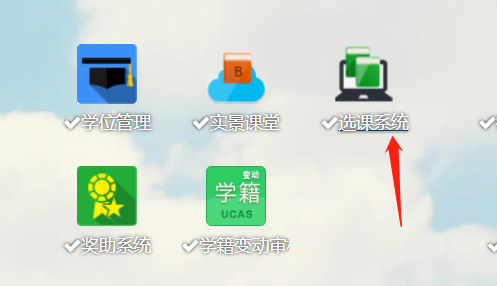
In ‘Select Courses - Select Courses - Selected Courses’, click ‘Add to Course Website’.

Then enter the SEP - Course Website.
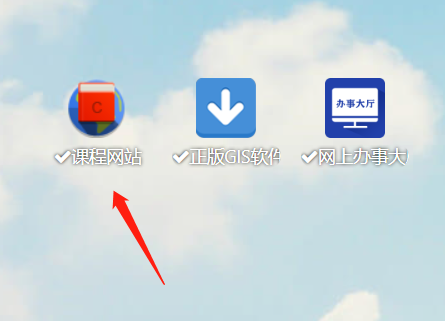
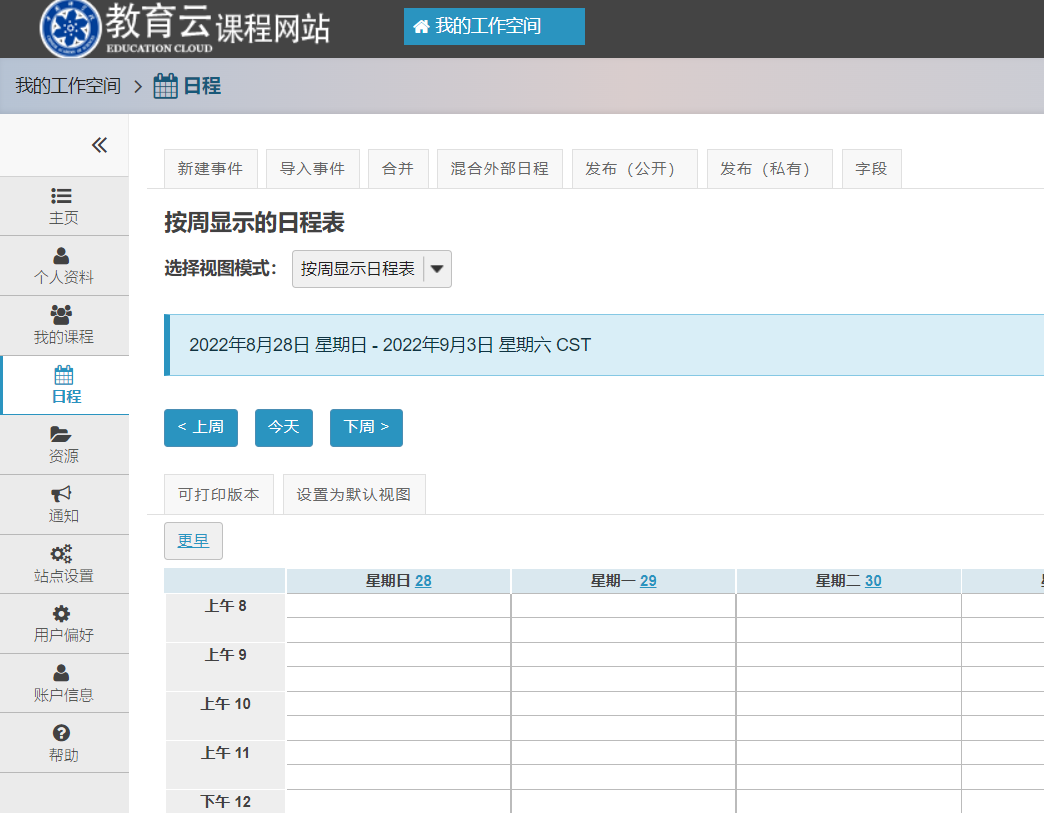
Click ‘Schedule’ on the left to view all schedule information.
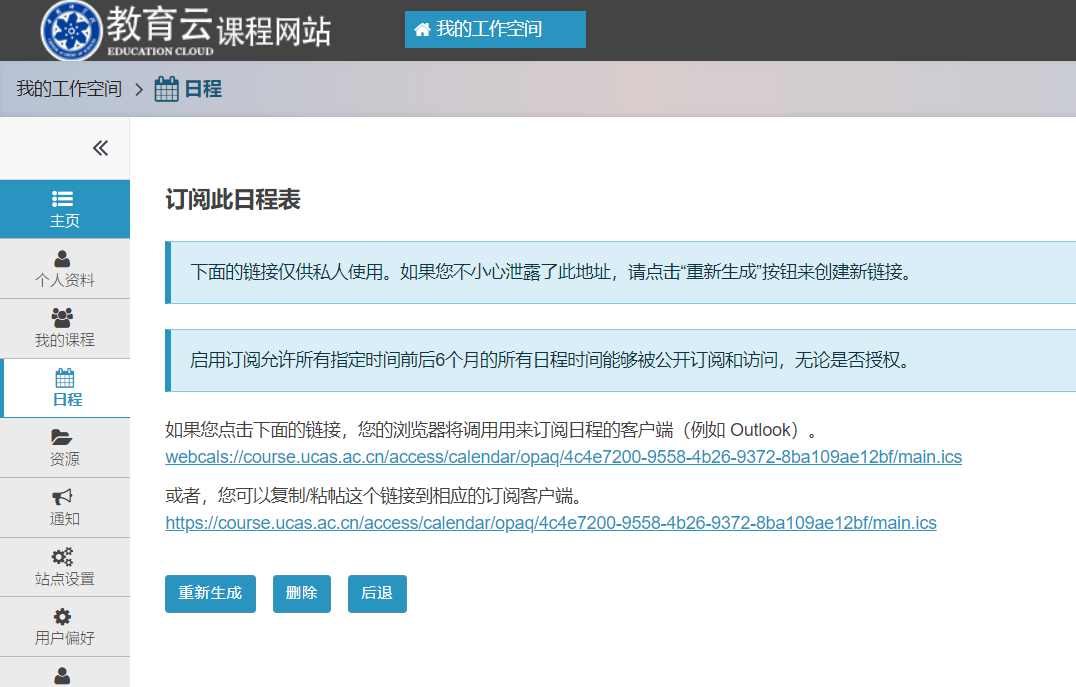
Click ‘Publish (Private)’ as needed to obtain the ICS file and subscription link.
Or click ‘Publish (Public)’ to directly download the ICS file, which supports iCal export.
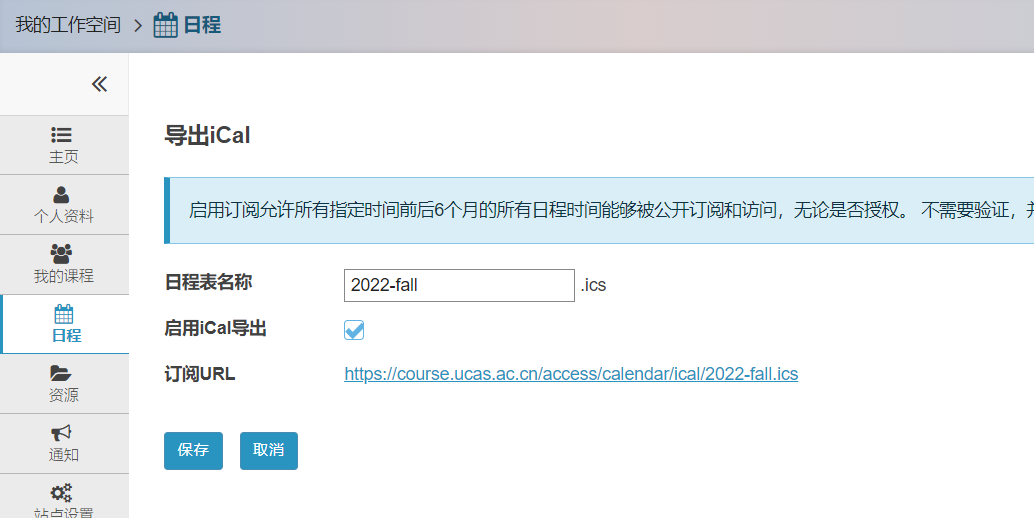
(If you’re interested in my schedule, feel free to try these links 233)
Tampermonkey Plugin (Recommended)
Another method is to use a Tampermonkey plugin written by a senior student to export ICS files. When exporting from the course website, courses are split separately, meaning each class session becomes an individual event rather than a single integrated schedule, which may cause multiple reminders.
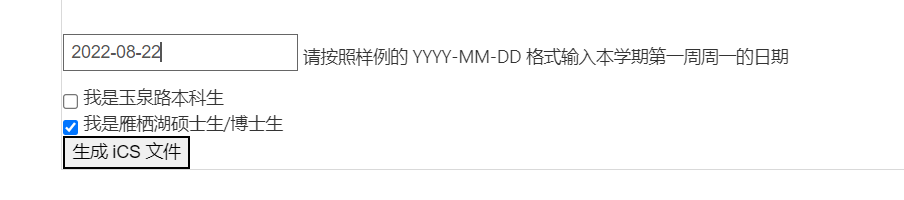
The script written by the senior student can be found at 2. First, you need to install the Tampermonkey plugin in Chrome, Edge, or any browser you use, then click this link 3 to start the installation.
After installation, go to the Course Selection System - View Personal Schedule, i.e., the link 4, where you can see the plugin. For 2022 Yanqi Lake graduate students, configure it as follows.
Wakeup Schedule Export
The Wakeup app supports ICS file export, but unfortunately, the iOS version requires payment, while the Android version is free. So, you just need an Android device. See the section below for importing ICS into the iOS Calendar.
Importing Course Schedules (iOS)
This section mainly covers iOS devices, as many Android devices already support ICS file import. However, iOS does not offer this feature well; one could even say it’s quite ‘yaxi’.
Here, I’ve roughly learned two solutions.
Import via Email
If you’ve already used the iOS Mail app and set up your email, you can send the ICS file to your phone via QQ or WeChat, then forward it to yourself via email. Clicking the ICS attachment will import it into your calendar.
Import via AirDrop
This is quite simple: just AirDrop the ICS file to another device to import it.
Here’s a bit of a pain point: you cannot specify which calendar to import into. If importing many at once, it defaults to the first one. When modifying, you can only change the currently selected one, not all of them at once.
Import via Outlook
If you’re using a Windows computer, double-click the ICS file or open Outlook to import it. You’ll need to download Outlook on your iOS device and log in, then add the Outlook calendar to your system calendar.
Import via Subscription
I haven’t found a good tool to convert ICS files into subscription links yet; maybe I’ll write one when I have time?
See the next section for a better solution.
So, compromise with the course website: copy the subscription link from the course website and add it as a subscribed calendar below (I’m not sure how the update status of this subscription calendar works; I don’t know if the schedule will become invalid if the link expires. If it doesn’t, perhaps this conversion only needs to be done once?).
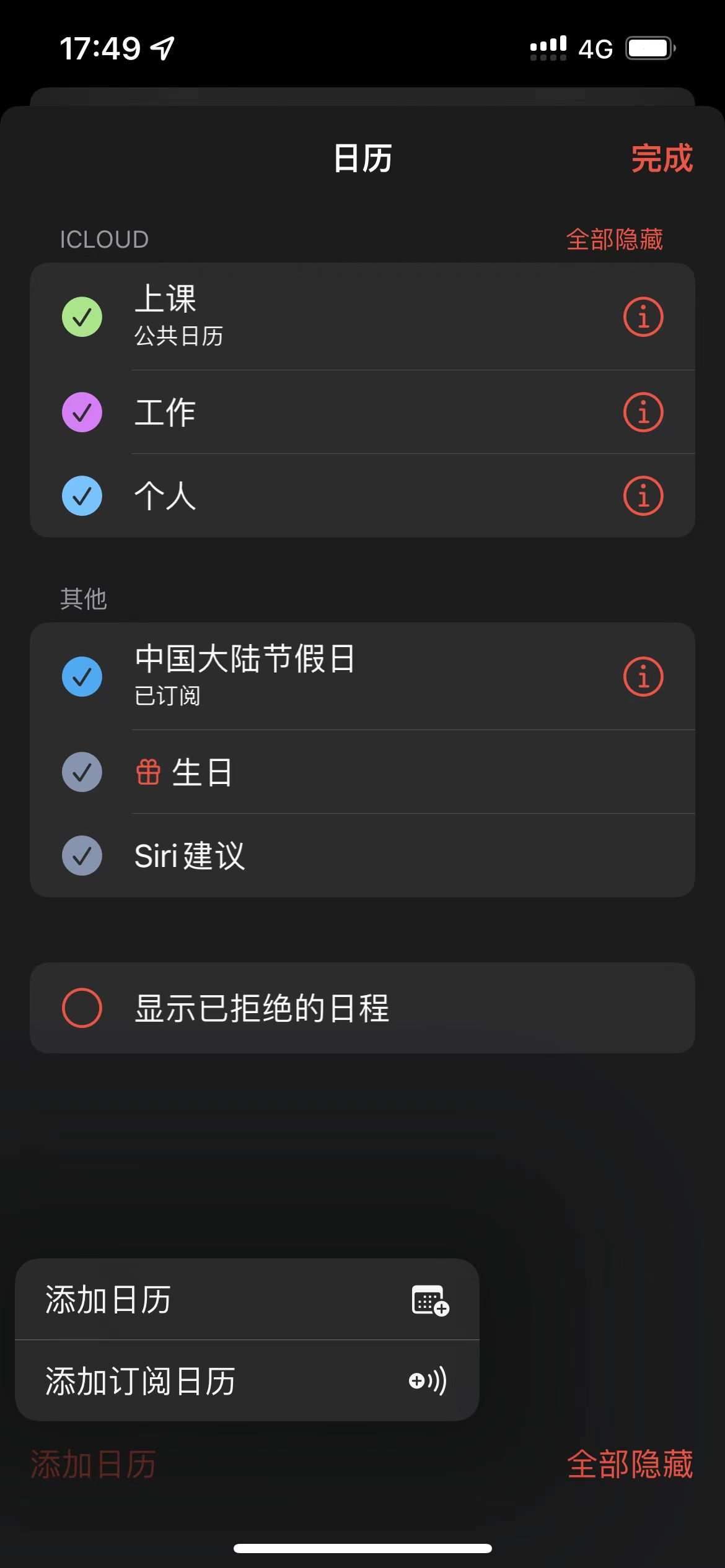
Of course, you can also use iOS’s built-in sharing feature: click the ‘i’ icon next to the calendar to share a calendar imported from iCloud for others to subscribe to.
Storing Your Own Schedule via GitHub (Recommended)
Through experimentation, I found that since the schedule is in plain text format, it can be easily hosted on GitHub for iterative updates. Meanwhile, GitHub Pages can make your schedule publicly accessible on the internet. This way, whenever your course schedule changes, you only need to update the ICS file on GitHub.
The method is simple: first, create a new GitHub repository, clone it, create a docs folder, place the ics file inside that folder, and commit the changes. We assume the ics file here is course-schedule.ics.
Then, as shown in the image below, click the 5th option to publish your schedule. The address is the URL in the box followed by your filename; for example, it should be webcal://www.bj-yan.top/webcal/course-schedule.ics. (Note: change the protocol header to webcal.)
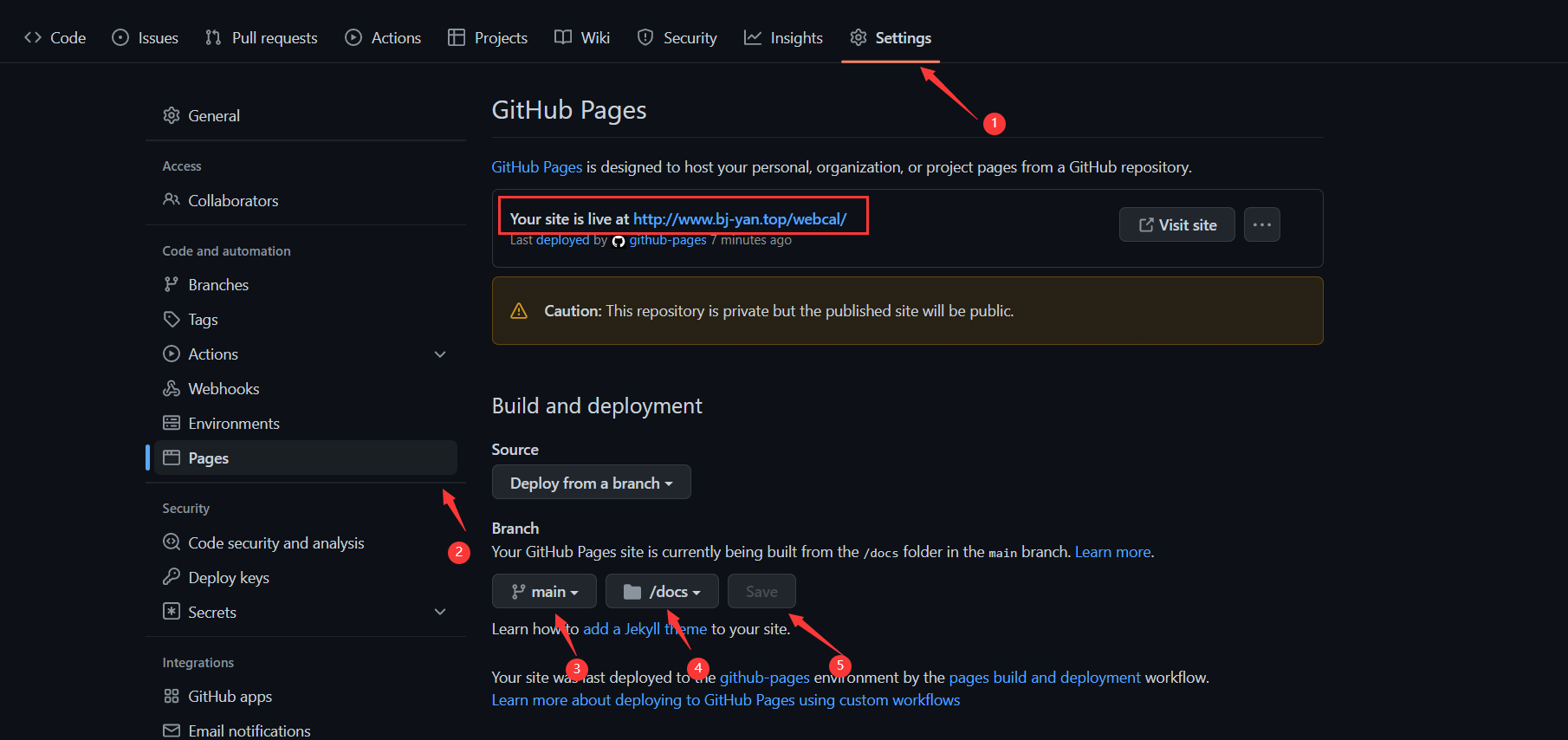
Finally, import the subscribed calendar on your device.
Schedule Import (Windows)
Double-click to open the .ics file, log in to your account, and import it into Outlook.
Other Schedule Import Options
Of course, this method is quite simple; apps like Wakeup, Super Course Schedule, etc., can handle it. But I haven’t found a corresponding academic affairs interface? Maybe I’m doing it wrong, but since there aren’t many classes anyway, it’s easier to just do it manually.
The most recommended option is USTC Online. Anyway, you’ll need to download MOOCs and other platforms anyway; the app includes a schedule, but updates may be delayed—probably taking about a day to refresh.
Personally, I prefer the system calendar because it’s convenient for reminders, and since it’s built-in, managing it is much easier.